Use the free resource-pack release
Start with the free Chill Mod version and install each compatible component yourself.
Explore the Free Version ↗
Tutorials
A visual installation guide for the Chill Mod resource-pack release you selected.
Minecraft Java Edition
Chill Mod is a resource pack for Minecraft Java Edition. Match Minecraft, Fabric, and every supporting mod to the exact release you selected.
A resource pack changes visuals and belongs in resourcepacks. A modpack is a prepared setup that can include mods, shaders, packs, saves, and launcher files.
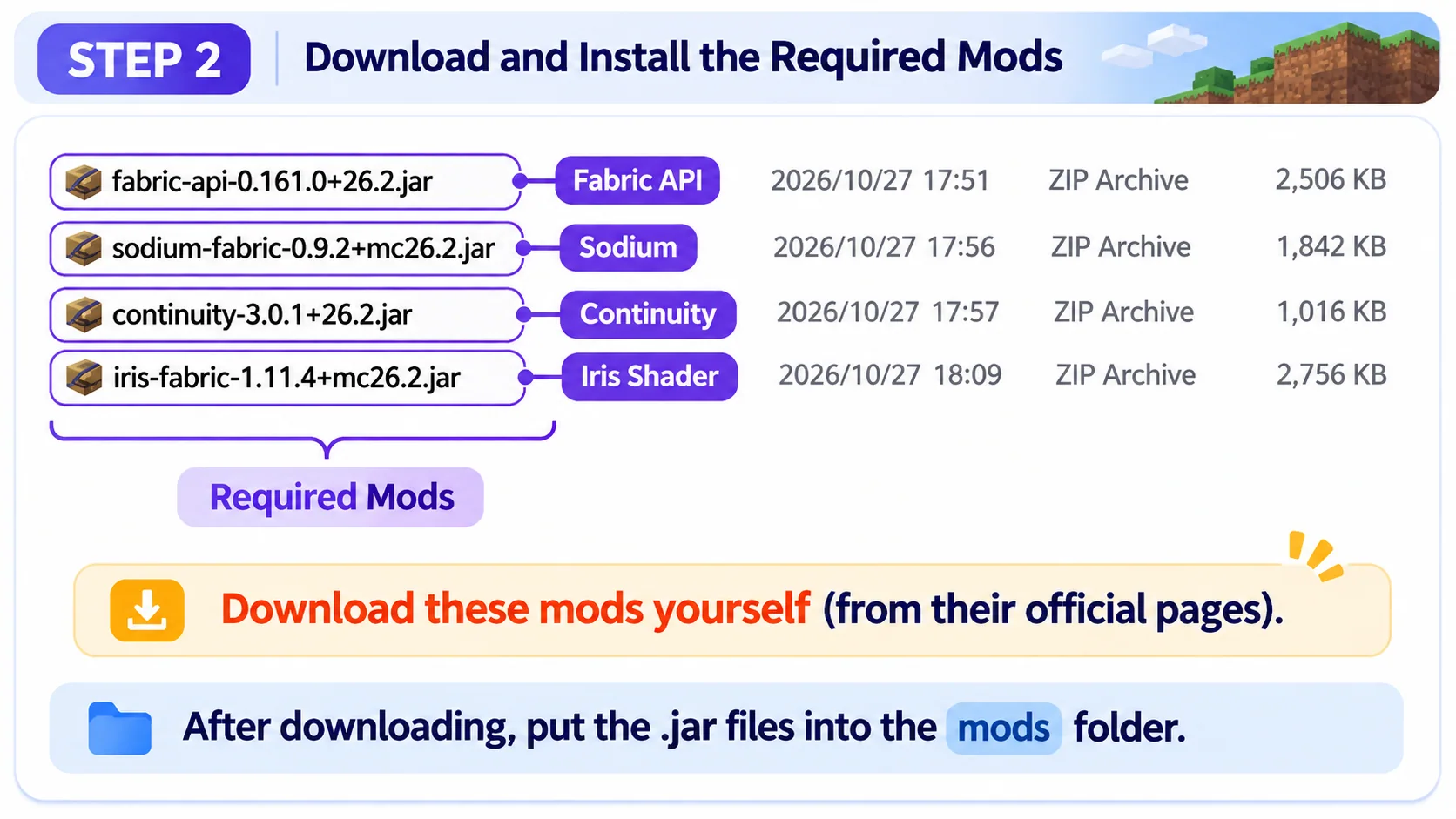
The shown setup uses Fabric API, Sodium, Continuity, and Iris. Install compatible versions. Sodium supports performance, while Iris enables shader use. Indium is only needed when the documentation for your specific Minecraft/Sodium/Continuity combination calls for it.
Chill Pro members can get a ready-to-launch modpack that brings together a variety of fun mods, beautiful shaders, and suitable world saves for a much faster setup.
View the Full Modpack Setup Guide ↗Download all four Chill Mod packs supplied for the same release. For the shown version they are Base, Gear, Overlay, and Plant. Some newer releases may use Colored instead of Overlay; follow the files actually provided. Releases 1.5 and later stay as ZIP files, while older 1.3/1.4 packages may require extraction.
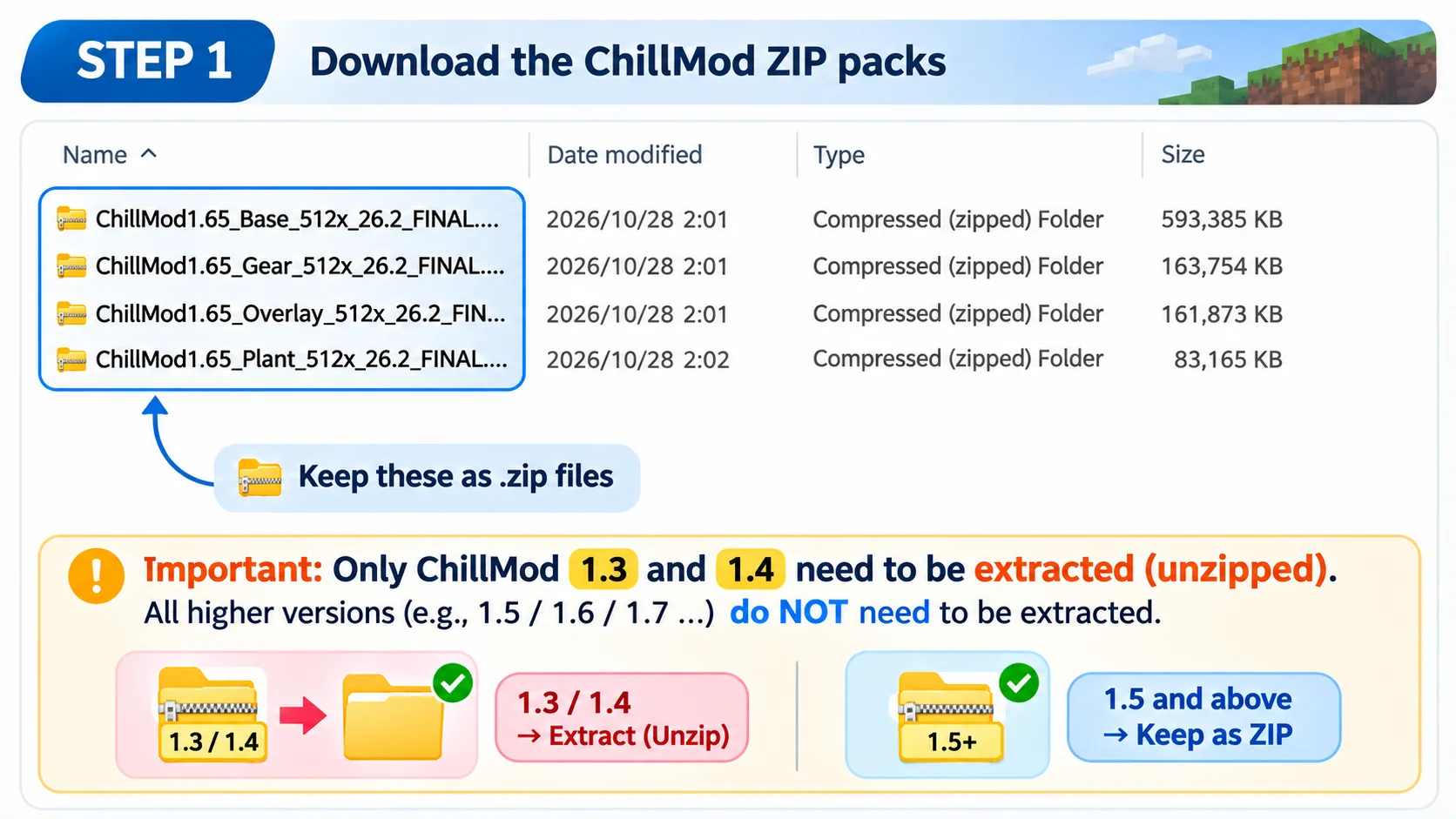
Download compatible Fabric API, Sodium, Continuity, and Iris versions for your Minecraft release. Place their .jar files in the mods folder.
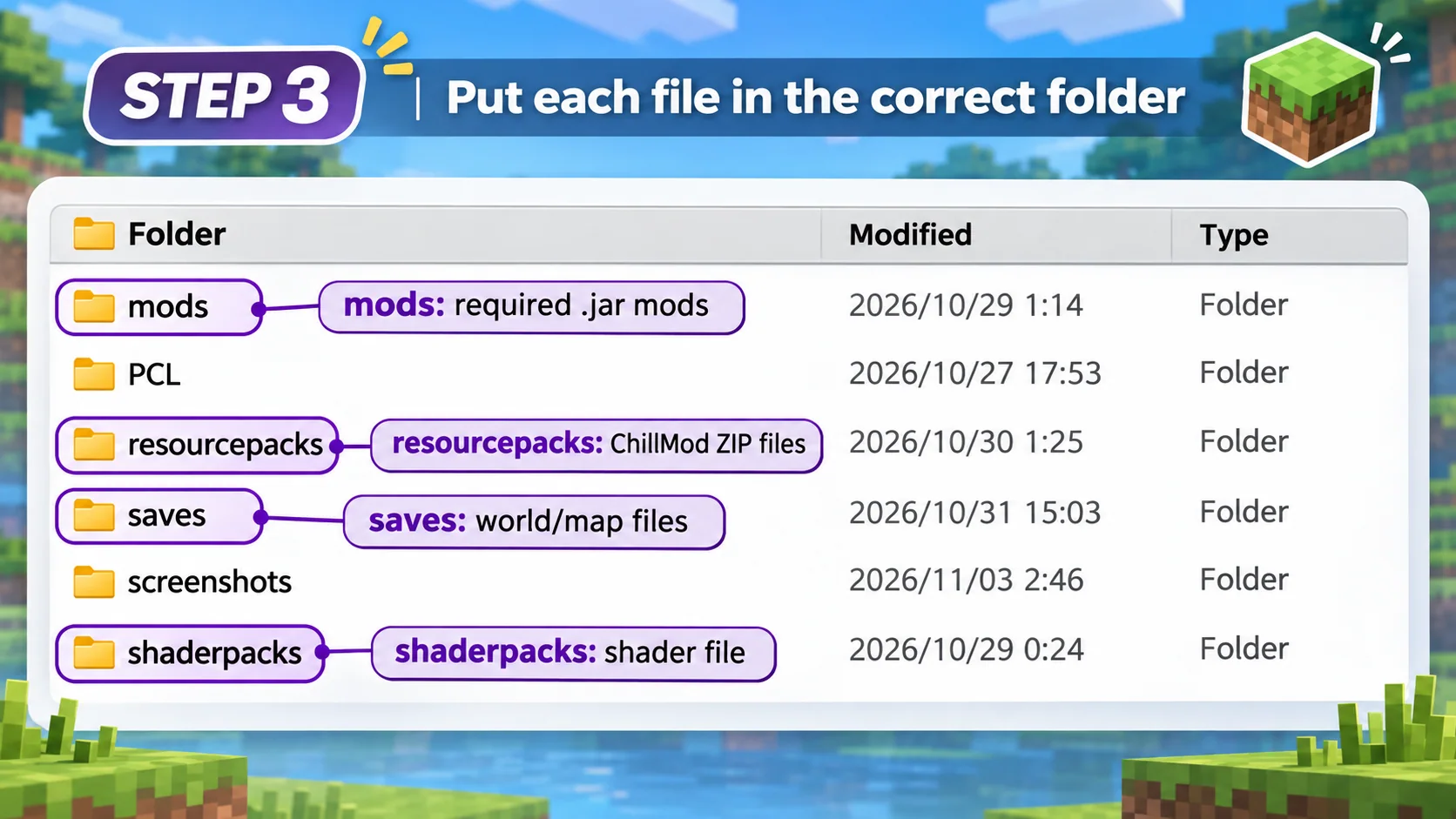
Mods go in mods, Chill Mod ZIP files in resourcepacks, world saves in saves, and shader packs in shaderpacks.
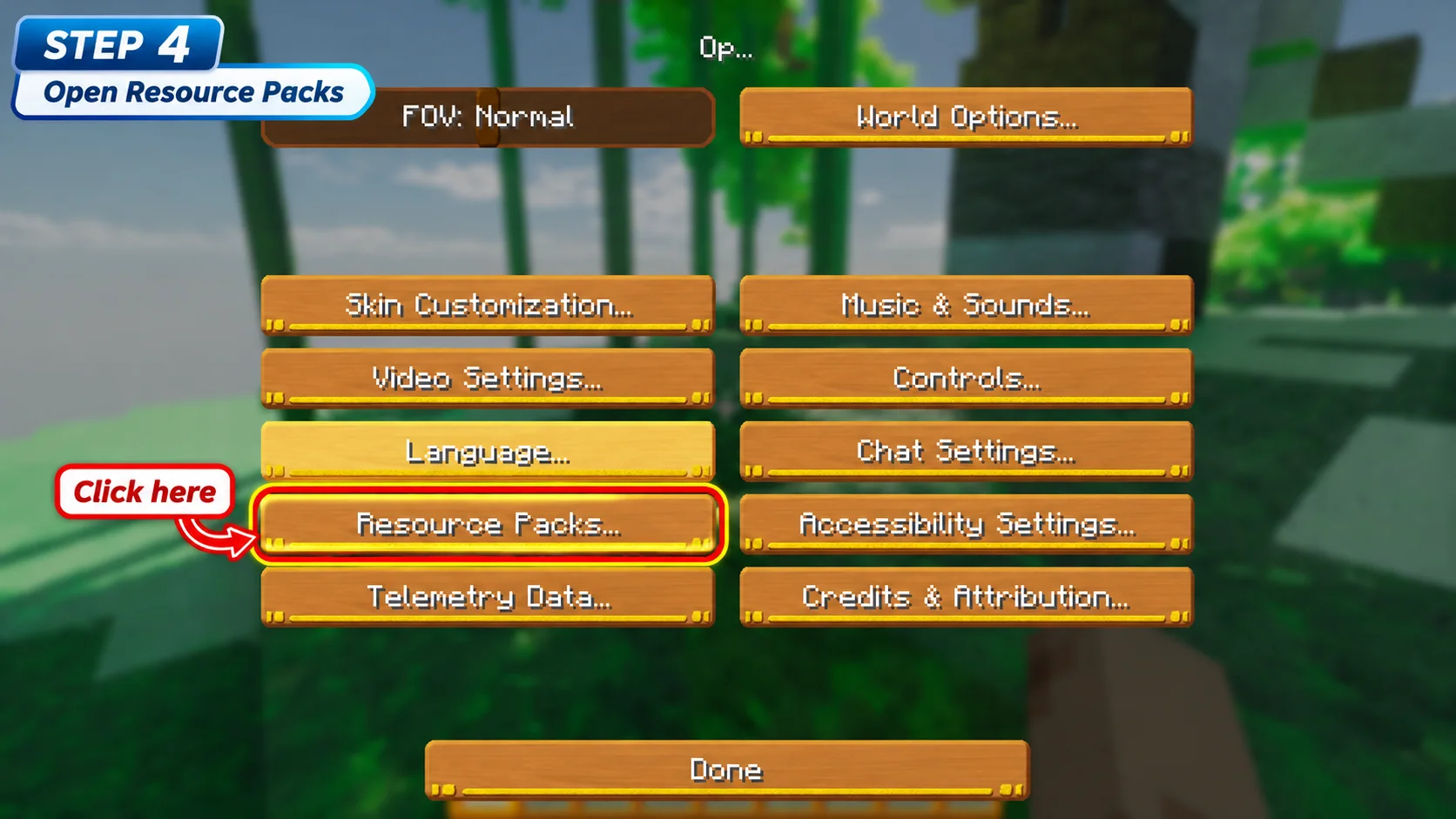
Launch Minecraft, open Options, then choose Resource Packs.
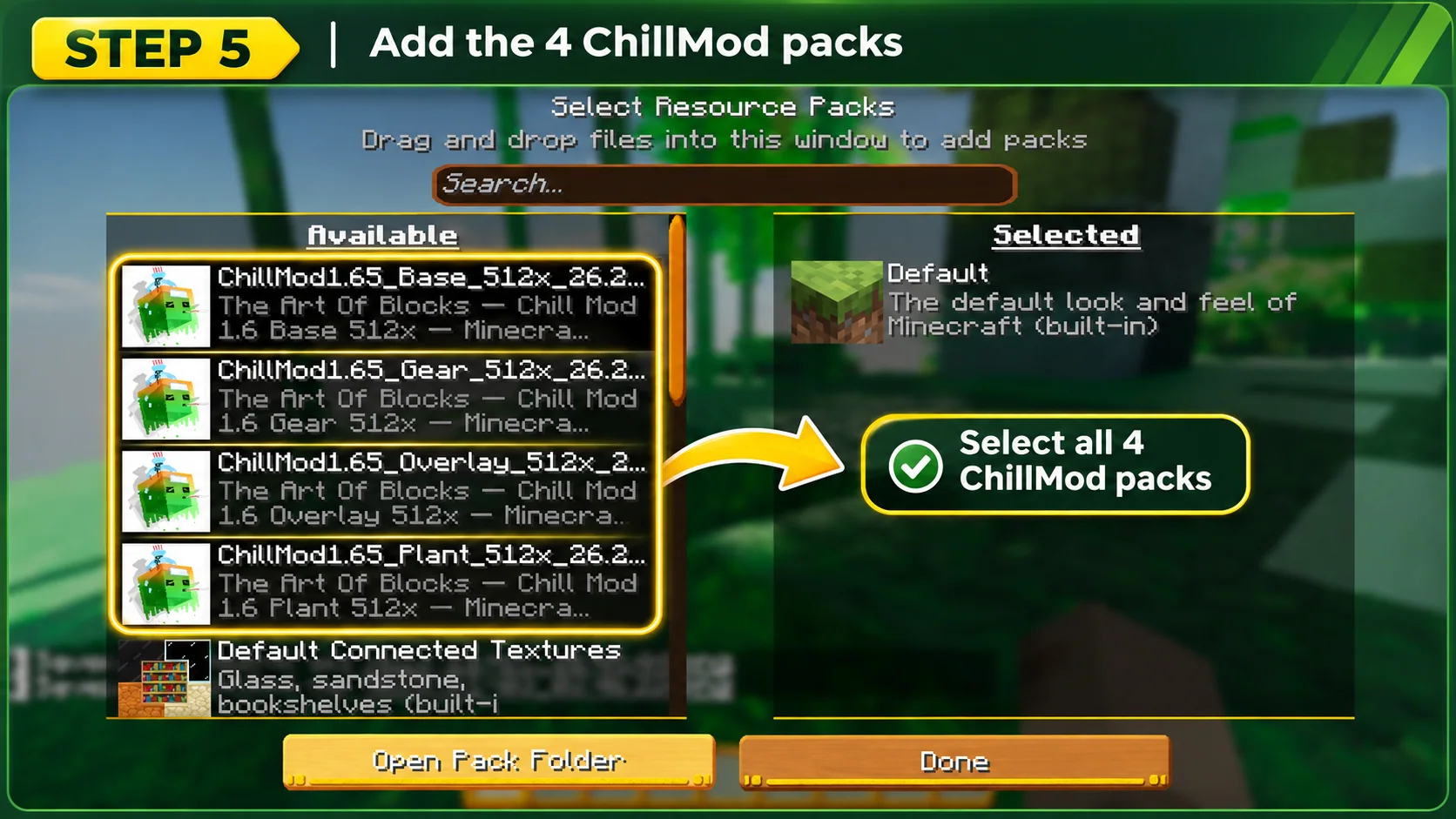
Move every Chill Mod pack included with your matching release into the selected column. Do not assume names or priority from a different release.
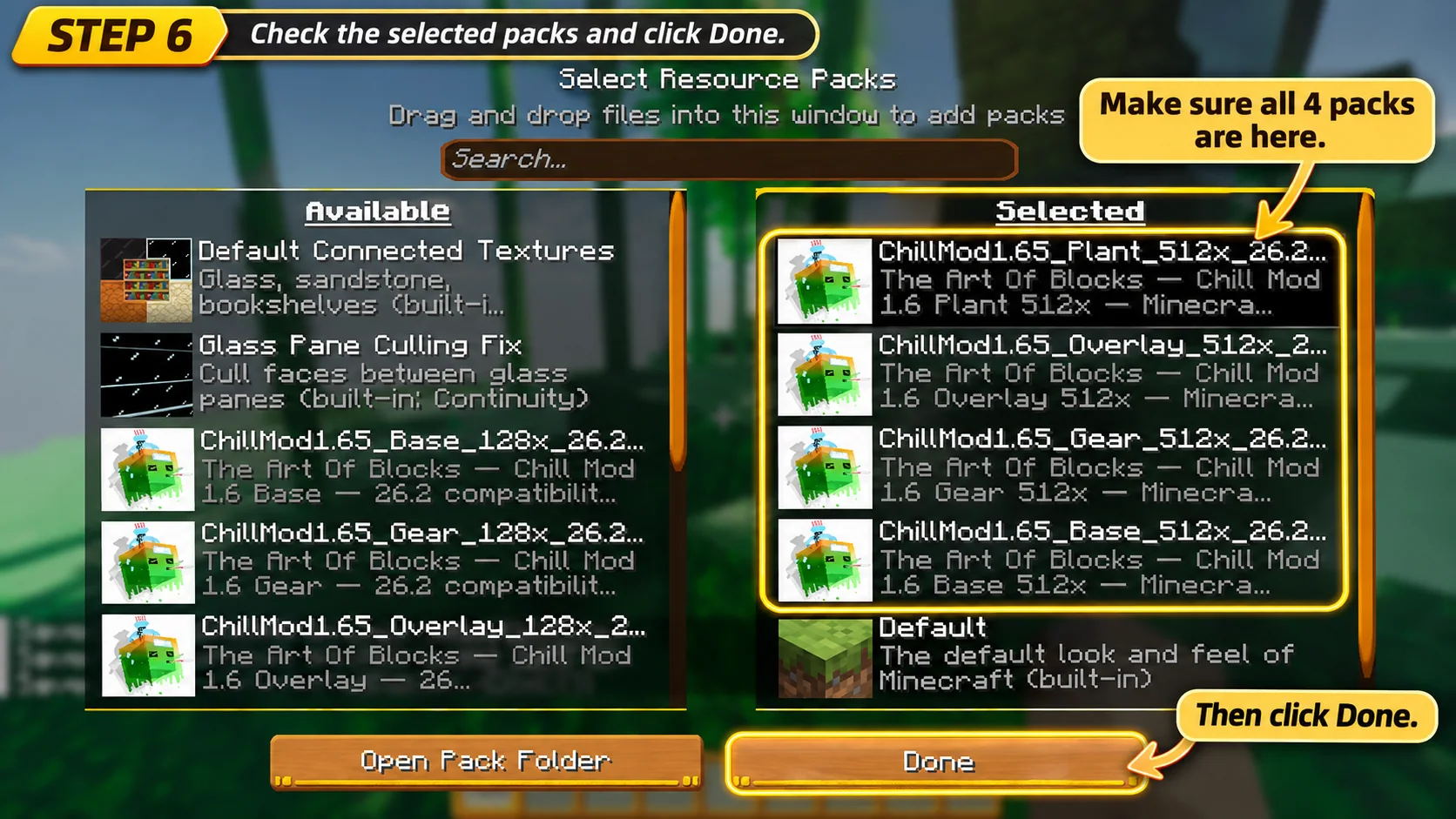
Verify that all four supplied packs are selected, then click Done. The pictured release shows Plant, Overlay, Gear, and Base selected.
Compare member releases or use the guide to find the level that matches what you want.